Thursday, July 6, 2017

Scribing for Young Children

July 6, 2017

In early childhood classrooms, some students are learning to hold a pencil with the correct grasp, while others are writing simple sentences.  A challenge for teachers is to provide equal and individual support for these emergent writers in a short period of time. 

In our classroom, we include journaling centers every week or two, giving students an open-ended topics for study. Most students illustrate their thoughts and ideas, and some add simple words. Many ask the teacher to print their dictation: either a story or description of their illustration. As one can imagine, this takes a lot of time when there are eighteen children in class.

Though I have not used Dragon Dictation in the classroom, I was able to find a You tube Dragon in the Classroom video that give a detailed description and training for educators. It appears very straightforward and simple to use.

Rather than dictating to an adult, students speak into the app and their words print on the screen. Once complete, students could bring their dictation to a teacher for review (to ensure it transcribed correctly) and print it on the classroom printer.  After printing, students can cut and paste their words into their journal. The added bonus in this step is that it continues to encourage cutting and gluing which helps strengthen the fine motor skills that are needed for that correct pencil grasp I mentioned earlier. Utilizing Dragon Dictation appears to be a win-win for students and teachers. 

Image result for photo of kindergarten journal with print

      Image result for photo of kindergarten journal with print                                 Image result for photo of kindergarten journal with print
Without Dragon Dictation


kindergarten reading notebook ideas...beginning of year

With Dragon Dictation


Monday, July 3, 2017

Classroom Management - Is Technology Really Needed for Early Childhood "Control"?

July 3, 2017

We currently use Responsive Classroom (RC) for our classroom management program, and I feel it is very effective. RC is an approach based on social, emotional, and academic growth due to the safe and respectful classroom community. It does not rely on technology to implement this program, and in fact, technology in place of a human connection would detract from the goals of the program. 
 That being said, I did research some classroom technology apps for this assignment. Class Dojo is one that I have heard of in my son's elementary school, but I did not hear favorable reviews from the students or the parents, in short because 1) it utilizes shame as a negative behavior deterrent, and 2) some students felt the teacher was so busy distributing or taking away behavior points that they weren't focused on actual teaching.  I found this blog that echoes my concerns with Class Dojo and similar apps. 

  
I can appreciate that these types of Classroom Management apps may be more effective and useful for upper elementary and secondary classrooms, but I still find it to be an interesting read for all educators.   

The best that I can come up with for my class is Bouncy Balls. The balls literally bounce higher and more frequently as the volume in the classroom increases. Currently, we turn off one light, and then the other, as the volume in the classroom increases.  The lights dimming is a visual signal for the students to adjust their voice volume so others can learn comfortably.  I suppose a computer set up somewhere central in the classroom with the Bouncy Ball app could alleviate the need for the light signal, and therefore free up a teacher from running back and forth to the light switch. To implement the app, we would need time to allow for students to experiment with the effects, (who wouldn't want to see what happens when it gets really loud?) and outline clear expectations and consequences for the volume and corresponding bouncy balls, before utilizing it on a day to day basis.  


Can You Show Your Friends How it Works? - Student Tutorials

July 3, 2017

This particular segment of technology for the classroom excited me.  As part of our educational philosophy, peer teaching is high on the list.  Establishing social connections and encouraging respect and care of each other at the beginning of the school year leads to learning through observation of those around us and learning through interactive play.  The opportunity to utilize technology to enhance peer learning is fun AND beneficial for the students (and teachers). Simply using an iPad or iPhone video function provides opportunities for many types of tutorials. Currently, our young students participate in a public speaking opportunity or dramatic play at least once every two weeks, and the use of technology can increase these opportunities.
 Some of our opportunities include:
  History Share: Students bring in an item that has personal meaning to their family (traditional, cultural, or historical) and introduce it to the class. Students locate where the item comes from on the globe. Other students then follow up with questions or comments. As the week progresses, our globe has numerous stickers on the globe and typically leads to discussion regarding types of travel, distance, geography, and various cultures.
 Calendar Helper: Students share the date, month, season, number of days in school, and weather.
 Science Demos: Students teach each other about science and math concepts such as the butterfly life cycle, the many ways one can create a set of ten with Cuisenaire rods, and how to use ramps and pulleys.
  My Life Show-and-Tell: Students share information from a recent trip or experience, introducing their peers to new concepts and places.
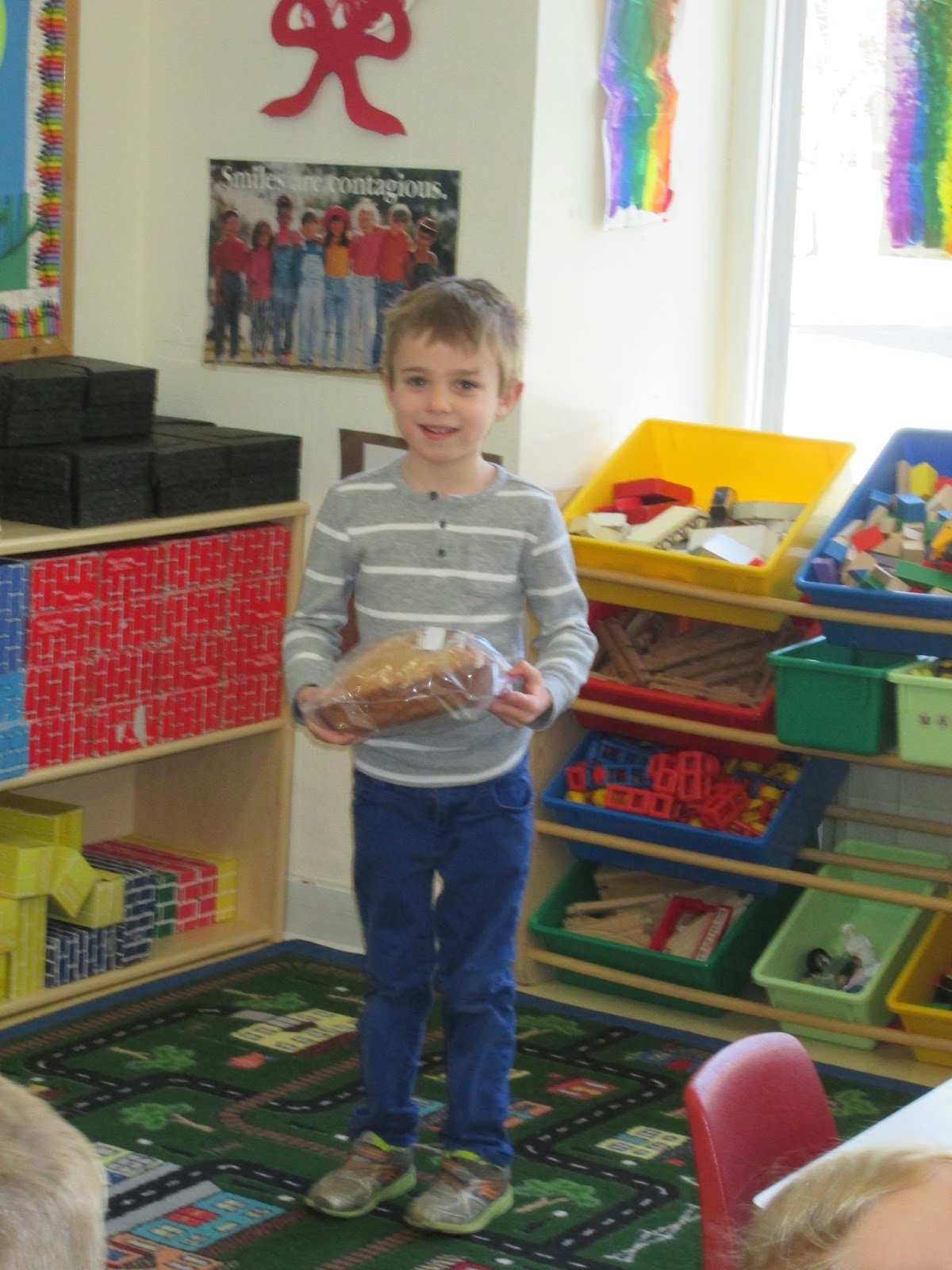
  Any of these peer teaching opportunities can be filmed, and used for student tutorials, at home or in the classroom. In the History Share example above, one child brought in a dessert traditionally (see photo) made by his Swedish grandmother. The student had made the dessert with his grandmother for this assignment, yet could only bring the recipe and describe the experience. Had I have thought of utilizing technology, I could have suggested that the child video a portion of the cooking experience. Measuring, safe cooking practices, and hearing his grandmother's accent would have enhanced this tutorial for the students.


 As with any new activity, our teachers will need to model the expectations and appropriate behavior for the new tool or activity. Responsive Classroom uses Interactive Modeling to demonstrate the expectation, ask students to share what they've noticed about the demonstration, and then model the appropriate behavior with the tool.  Interactive Modeling would be used to demonstrate the proper use of an iPad or iPhone for videoing, but also for viewing, before it was included in a Science Center or other classroom lesson.
 Due to the timing of this class, I do not have any students available to create a sample for me. For these purposes, you'll hear my voice in this is sample video. In a true classroom lesson, I suspect the video would be much longer.


Wednesday, June 28, 2017

Technology for Parent & Community Relations

June 29, 2017

Currently, our communication process consists of two parts:  1) the main office sends out monthly, weekly, and special event calendars to parents and 2) our teaching team posts a daily message on the easel, sends home a monthly calendar newsletter on paper, sends a weekly email with updates or reminders, and sends the occasional email directed to individual parents that need additional reminders and/or responses to questions and concerns. The calendar newsletter is the catch-all.  It includes a lot of detailed information for the month including units of study, student needs, snack schedules, and special events.  For obvious reasons, creating this combination of paper copies, emails, and individual responses is time consuming and can occasionally cause problems. "Sarah didn't bring a newsletter home this month!" "I must have deleted that email, can you resend it?"


After investigating and trying out the Remind application, I conclude that Remind can be beneficial for our communication with those outside the classroom. 


Remind gives the user the ability to send messages, to groups or individuals, and has the capability to open up the message into a conversation. In an ideal world, this capability appeals to me the most, but I suspect it would be frowned upon by the administration due to the legitimate risk of parents posting negative comments or criticism in a (now) public forum.  

Yet for arguments sake, I'm going to pretend that the conversation capability is allowed in my classroom. Once the conversation capability is enabled, parents can reply to a message or reminder with questions. Once I reply to that questions, the answer is out for all parents to view in the conversation. I will no longer need to respond to ten individual emails answering the same question.  For instance, if I send a reminder that there is an early release on Thursday (keeping in mind that this is a reminder - parents were already notified prior via the main office calendar and our monthly newsletter) and a parent responds with a question, I can convey that information quickly and easily.  "Do I need to send a lunch with my child?" My affirmative response will reach the other parents instantaneously. They (and I) will no longer need to open up numerous emails to follow the thread trail of questions and answers. This is applicable and extremely helpful for our History Share events, performances, Show-and-Tell days, Special Visitor days, field trips, etc. etc. 


Remind also has the capability to list one's office hours, to restrict the conversation when necessary, and to archive past announcements, so teachers and parents can look back for information when needed. 


This application is user-friendly and straightforward. Perfect for tech-amateurs like me.

Technology for Administrative Tasks and Communication

June 29,2017

Technology for the Red Room "Back Office" 

After laying out my ideas in my Growth Plan, I began working on a Google Drive for the Red Room team to share during the 2017-18 school year. Once our Google Drive is in place, and everyone is acclimated, we can all add resources as they are discovered or used successfully in the classroom. We can pull documents, ideas, and information from the websites, blogs, and videos I detailed in my last post, as well as compile documents, samples, and forms from previous units.  

First I made some preliminary folders that meet our needs. For example, each month has it's own folder. 


Within those folders, I mimicked the folders we already use in our hard copy file folder system. For example, within the Unit Themes folder, I listed common units we cover every year. 


This certainly isn't rocket science, but it is clearly a much more organized and environmental way to keep track of our paper. 

Even student samples can be added via taking a photo.  

I can drop this in the Spring Unit folder, under Art Samples.
Seeing the possibilities makes it easy (and kind of exciting) to embrace this technological change in our classroom. 

My hope is that a shared Google Drive will 1) increase collaboration 2) eliminate the chance of confusion and/or duplication and 3) decrease the need for endless emails and paper. 
An added bonus (if I can convince my director to get onboard) is that she and the school admin assistant can add documents and forms to this drive, at any time, as well. 


My Growth Plan - Utilizing Google Docs for the Red Room Teaching Team

June 28, 2017

Introducing technology into our classroom seemed like an uphill battle at first glance. Our school philosophy is built on learning-through-play, with an emphasis on natural materials, so computers, screens, even worksheets, are frowned upon. After numerous attempts at trying to fit a square peg into a round hole, I realized EDU 614 could actually benefit my CCPDS Red Room prekindergarten class. I simply needed to explore more of the possibilities, rather then limiting my idea of classroom technology to smart boards and iPad games. Technology can streamline our curriculum planning and team collaboration, saving us time and initiating greater brainstorming power and idea sharing. 
  
First I set my goals: 

  1. Use technology to assist in team curriculum planning.  
  2. Become proficient at Google Drive and applications.
  3. Set up Google Drive and share with teaching team to utilize in 2017-18 school year.
To get started. I gathered the websites that we currently use and organized them with URL links.  Most centered around Responsive Classroom practices and activities, and others utilized community resources we introduce to the students or visit annually. Finally I pulled up various resources on exceptionalities that we have needed in the past.  

Bloggers:
Responsive Classroom Educator Amy Bisson
Selective Mutism and Anxiety in Children
Will Richardson - Tech in the Classroom
3Rs4Teachers - Teaching Young Students
Make Something - Empowering Students

You Tube:
Responsive Classroom Best Practices
Responsive Classroom Energizers
Alan November - Who Owns the Learning?

Institutions for Field Trips:
Ipswich River Wildlife Sanctuary
Green Meadows Farm

Guest Visitors:
Dr. Priscilla Magnuson - Dental Health
Hamilton Fire Department

Other Resources:
North Shore Therapies
Edutopia
Alan November - Tech in the Classroom
Common Sense Media

One of the most difficult challenges of team teaching is keeping all teachers informed and on the same page. By utilizing technology, we can enhance our abilities and effectiveness as educators. I'll post more about my attempts in the next post - Technology for Administrative Tasks and Communication.  


Tuesday, June 27, 2017

My 21st Century Classroom - Introduction


June 26, 2017

Welcome to Mrs. Daley's Classroom Blog!  


My vision for my 21st Century Classroom is my current PreKindergarten classroom with some technology upgrades. 


Our current classroom community includes 18 PreKindergarten students, and three teachers. Our students come from an affluent area on the North Shore. Our classroom curriculum is built upon the philosophy that children learn best through play, in tandem with intentional teaching with reference to the Responsive Classroom classroom management program. We focus on the importance of building social connections, so that all students are comfortable, confident, and respectful of their peers. I believe when a respectful environment is created then children will be more likely to ask questions and make mistakes, and as a result, meaningful partnerships and learning can occur. I'd like to think that the technology we are learning about in EDU 614 can weave seamlessly into this philosophy.  


Our academic focus is on emergent literacy, beginning math concepts, world cultures, science, music, art and creative movement. 


We have students in our classroom that have impulse challenges, hearing disabilities, speech delays, selective mutism, and students that receives physical therapy for low tone and core weakness. Assistive technology can play a part to support those of us with challenges. 


 Here is the layout of our classroom:


I've added a spot under our easel for tablets. Currently, we have 18 dry erase boards for students to use independently, in small groups, and in whole class activities. Tablets could offer even more opportunities for learning, and I will outline the applications in future blog posts.